Microsoft Outlook
- 4.3
- Rating
- 1.00B
- Installs
- Free
- Price

 Analysis by App-foxy
I use Microsoft Outlook as a practical home for email, appointments, and contacts rather than as a simple inbox. It is a productivity app from Microsoft Corporation, and its main appeal is the way it brings several everyday communication tasks into one mobile workspace. That sounds straightforward, but the difference becomes clear when I am moving between a work account, a personal mailbox, and a calendar while away from my desk.
The current Android release is version 5.2605.2, and the app supports Android 10 or later. It is free to install, with optional in-app purchases ranging from $1.99 to $20.00 per item. I would not treat those purchases as the reason to choose it, though. The real decision is whether you want Microsoft's way of combining mail, scheduling, and contacts, or whether a simpler email client would feel more comfortable.
How Outlook feels in everyday use
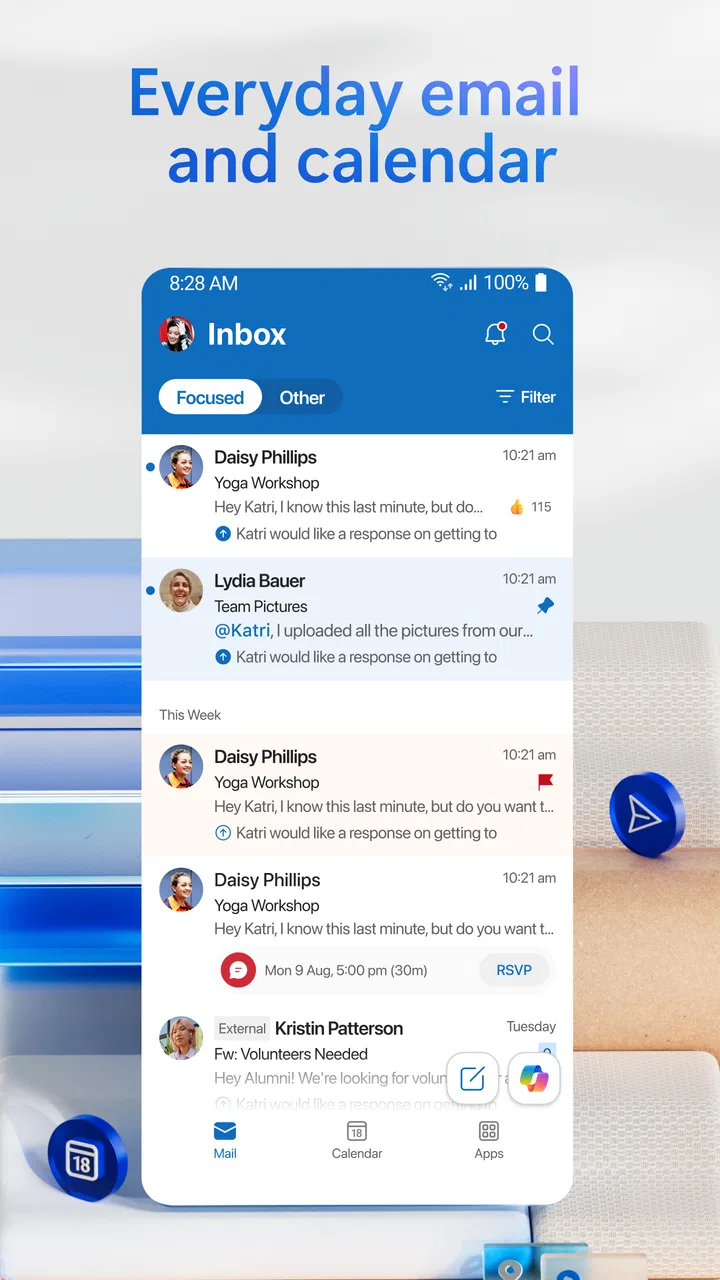
My first impression is that Outlook is built for people who need context around their messages. An email is rarely just an email when it concerns a meeting, a deadline, or a person I need to call. Moving from the inbox to the calendar or contact information without changing apps makes the experience more coherent than using separate tools for each task.
In-Depth Coverage of Microsoft Outlook
The store summary describes staying on top of multiple accounts with emails, calendars, and contacts in one place, and that is a fair description of its purpose. What matters in practice is how much less mental switching this creates. I can read a message, check the relevant appointment, and return to the conversation without rebuilding the situation in my head each time.
That unified approach is especially useful for people whose day is organized around correspondence. If your inbox contains invitations, travel arrangements, client questions, school notices, and personal messages, Outlook gives each item a place in a broader routine. It is less compelling if you only need to check one mailbox occasionally and prefer an interface with almost no extra sections.
Managing more than one account
Multiple-account support is one of the strongest reasons to try it. I find it useful to separate personal and professional messages while still having one app available when I am commuting or away from a computer. The important benefit is not merely seeing several inboxes; it is being able to move between them without maintaining separate notification habits and app layouts.
There is a trade-off. Combining accounts can make a busy day feel efficient, but it can also blur boundaries. Before sending a sensitive reply, I recommend checking which account is active and looking closely at the sender identity. This is a small habit, but it matters when personal and work conversations live beside each other.
I also prefer treating the unified view as a triage surface rather than as a permanent replacement for individual inboxes. When I want to process everything quickly, a combined view is convenient. When I need to focus on one role, opening that account directly reduces distractions and makes it easier to judge what deserves attention.
The calendar is more than an extra tab
The calendar gives Outlook a different character from many basic mail applications. I use it to connect an appointment with the message that created it, which is helpful when an invitation contains an address, preparation notes, or a change in timing. That connection is more useful than simply having another calendar icon on the phone.
A realistic example is a day with a morning appointment, a series of work messages, and a personal commitment later in the afternoon. I can check the schedule before answering email, then use the surrounding context to decide whether a request can wait. This prevents the common mistake of accepting tasks without looking at the time they will actually require.
My advice is to use the calendar as a planning tool, not just a reminder list. When I scan the day first, I can group short replies between appointments and avoid promising a fast response during a crowded period. Outlook is at its best when mail and scheduling influence each other.
Contacts and the value of context
Contacts are easy to overlook because they are less visible than the inbox, but they make the app more useful for recurring communication. Having people connected to the same workspace helps when I need to find a previous conversation, confirm an address, or start a message without remembering every detail manually.
This is particularly handy for people who communicate with the same groups repeatedly. A small business owner, a project coordinator, or a family organizer may benefit from having names, messages, and appointments close together. Someone who already maintains a carefully organized contact system elsewhere may see less value and may prefer keeping Outlook focused only on email.
Small workflows that improve the experience
One useful workflow is to review the calendar before processing the inbox. I mark messages that affect the day, deal with items requiring a quick answer, and leave longer tasks for a time when I can actually complete them. This prevents the inbox from dictating the schedule.
A second workflow is to use account separation deliberately. I keep personal reading for personal time and work messages for work blocks whenever possible. Outlook makes switching convenient, but convenience can become constant checking. The app helps with access; I still have to create the boundaries.
You May Also Like

 8 Ball Pool
8 Ball Pool Is Built on Rivalries, Rematches, and Routine
A close look at the rivalries, rematches, shared routines, and unanswered safety questions that turn a quick pool match into a persistent mobile community.

 Samsung Music
Samsung Music’s Quiet Strength Is Playing What You Already Own
Its reach comes less from spectacle than from dependable access to a personal library. That simplicity is both the app’s strongest retention engine and its ceiling.

 AccuWeather: Weather Radar
AccuWeather Review: A Quick, Clear Forecast for Everyday Decisions
For everyday plans, the best forecast is the one you can understand quickly. AccuWeather makes rain timing, radar, and local conditions easy to act on, with a few trade-offs.

 Hill Climb Racing
Why Hill Climb Racing Still Turns Crashes Into One More Run
A tiny car, a bumpy hill and one more upgrade: Hill Climb Racing keeps resurfacing because its simple chaos makes every near-miss feel personal.

 AliExpress - Shopping App
AliExpress Makes Global Shopping Feel Personal, but Shoppers Bear the Risk
AliExpress turns a global marketplace into a pocket-sized discovery engine. Its reach is useful, its shopping loop compelling, and its trade-offs easy to miss.

 Lords Mobile: Kingdom Wars
Lords Mobile Is a Kingdom-Building Routine, Not a Quick Match
A case-by-case verdict on the building, battles, device demands, and social commitments that make Lords Mobile rewarding for some players and exhausting for others.
More From Our News Desk
View All News


A third, less obvious benefit is using the message-to-calendar relationship as a memory aid. When I receive details about a meeting, I do not rely on remembering the email later. I use the appointment as the place to revisit the practical information. That reduces searching when the event is about to begin.
I also find it useful to treat contacts as a bridge between one-off messages and ongoing relationships. If a person appears repeatedly in email and scheduling, having their information available in the same environment reduces the friction of starting the next conversation. This is a modest advantage, but it becomes noticeable over a long week.
What has changed, who benefits, and what still needs care
I look at Outlook’s evolution through a practical lens: does the combined workspace still save effort without making everyday tasks harder to follow? Its ongoing releases and wide adoption make it a familiar choice, but scale alone is not a reason to switch. I’d first consider whether keeping mail, appointments, and contacts together solves a real problem in my routine, then weigh that convenience against the care required when managing several accounts.
A mature app with a broad reach
Outlook first appeared on January 28, 2015, and its current version shows that Microsoft continues to maintain the mobile product rather than leaving it as a static companion to desktop software. I see that evolution in the app's broad scope: it is not trying to be only a lightweight inbox, but a mobile hub for communication and planning.
Its scale is also significant. The app has an average rating of 4.4 from around ten million ratings, with roughly 344 thousand written reviews and over one billion installs. Those figures do not guarantee that it will suit every person, but they explain why Outlook is familiar to so many users and why its account-handling model has practical importance beyond a niche audience.
The current release is rated for Everyone, which makes it broadly approachable from an age-rating perspective. More important for a potential user is the operating-system requirement: Android 10 or later. Anyone using an older phone should check compatibility before planning a switch, while users on a supported device can approach it as a current productivity option rather than an obsolete legacy client.
How existing users may experience the evolution
For someone already using Outlook, the most meaningful effect of ongoing releases is usually not a single dramatic change. It is the gradual refinement of how accounts, mail, calendar entries, and contacts work together. That can make the app feel more dependable over time, but it can also make familiar controls move or behave differently after an update.
I recommend that existing users revisit notification settings and account preferences after a significant update. Even when the underlying workflow remains recognizable, small changes in presentation can affect how quickly you notice a message or how you move between accounts. A few minutes spent checking those settings can prevent missed appointments or an overloaded notification stream.
The app's continued development also means that users should avoid building a workflow around one visual detail. I prefer relying on the broader structure—mail, calendar, and contacts together—rather than memorizing the exact position of every control. That makes the transition easier when the interface changes.
Where Outlook is stronger than simpler alternatives
Compared with a basic email client, Outlook offers a more complete workday environment. A simple client may feel faster when all I want is to read and answer messages, but it usually does not make scheduling and contact context feel equally central. Outlook is the better fit when the email itself leads to a meeting, a follow-up, or a relationship that I need to manage.
Compared with using separate mail and calendar apps, Outlook reduces the number of places I need to check. That is not automatically better for everyone. Separate apps can offer a cleaner focus, and people who dislike an all-in-one interface may find Outlook busier than necessary. I would choose the combined approach when coordination matters more than minimalism.
It also makes sense for people already comfortable with Microsoft's ecosystem. The app feels most natural when an account, its messages, its appointments, and its contacts form one connected routine. If you do not need that connection, another mail application may be easier to learn and less demanding to manage.
Where the experience can be frustrating
The breadth that makes Outlook useful can also create friction. There are more places to look, more account states to notice, and more decisions about how to organize a busy inbox. Users who want an almost empty interface may feel that the app asks them to engage with more of their digital life than they intended.
Multiple accounts require discipline. A combined workspace is convenient, but it increases the chance of reading a message in the wrong context or replying from the wrong identity if I rush. I consider this a manageable weakness, not a reason to reject the app, but it is a real cost of consolidation.
Another limitation is that Outlook cannot solve poor email habits by itself. If messages are never sorted, appointments are not reviewed, and notifications are left at their default intensity, the unified design can become another source of noise. I get the best results when I decide which accounts deserve immediate attention and which can wait.
The optional purchases are another point worth understanding. The app is free, but individual in-app purchases can cost from $1.99 to $20.00. I would install it first and judge the everyday experience before spending anything. The free starting point is enough to decide whether the layout, account handling, and calendar workflow suit you.
Who should install it and who should skip it
I would recommend Outlook to a person who manages several email identities, relies on appointments, and wants contacts nearby without constantly changing applications. It is also a strong choice for anyone whose day is driven by messages that turn into meetings or follow-up tasks. The app rewards users who think in terms of a whole schedule rather than an isolated inbox.
I would be more cautious about recommending it to someone who checks one personal mailbox only a few times a week. That person may prefer a smaller mail app with fewer sections and less account-oriented complexity. I would also suggest looking elsewhere if you want a highly specialized calendar, an extremely minimal inbox, or a workflow built around tools outside Microsoft's approach.
Before switching, I would ask myself three practical questions: Do I need more than one account in the same place? Do emails regularly affect my calendar? Do I want contacts available alongside those conversations? If the answer is yes to at least two, Outlook is worth testing. If the answer is no to all three, its extra breadth may feel unnecessary.
What I would watch in future releases
Because the app is maintained through continuing version updates, I would pay attention to how Microsoft balances expansion with clarity. New capability is useful only when the core actions—reading, replying, checking a meeting, and finding a person—remain easy to reach. For me, preserving that balance matters more than adding another section.
I would also watch how smoothly the app handles the tension between unified access and personal boundaries. The ability to see everything together is valuable, but users need clear signals about which account they are using and what deserves attention now. Improvements that make those distinctions more obvious would have a direct effect on everyday confidence.
My final view is positive, with a clear condition: Outlook is best when email, calendar, and contacts genuinely belong in the same daily workflow. I like it because it helps me connect a message with the time, person, or action behind it. It is free to start, available for Android 10 and later, and developed by Microsoft Corporation, but its popularity is not the main reason I would choose it.
I would choose it for coordination, not merely for reading mail. Once I use the calendar before answering requests, keep account boundaries visible, and turn important messages into actionable schedule items, the app becomes much more useful than a standard inbox. If that sounds like the way you already work, Microsoft Outlook is a sensible productivity companion. If you want only a quiet, single-account mailbox, a simpler alternative will probably feel better.
FAQs for Microsoft Outlook
01What platforms is Microsoft Outlook available on?
Microsoft Outlook is available on both Android and iOS platforms. It can be downloaded from the Google Play Store for Android devices and the Apple App Store for iOS devices. Additionally, Outlook is accessible on Windows and macOS, ensuring cross-platform compatibility for seamless email management.
02Is Microsoft Outlook free to use on mobile devices?
Yes, Microsoft Outlook is free to download and use on both Android and iOS devices. The free version includes essential features such as email, calendar, and contacts management. However, some premium features may require a Microsoft 365 subscription, offering enhanced tools and additional storage.
03Can I integrate other email accounts with Microsoft Outlook?
Absolutely! Outlook supports integration with multiple email services, including Gmail, Yahoo Mail, and iCloud. This allows users to manage all their emails in one place. Simply add your accounts in the app settings to start receiving emails from different providers directly in Outlook.
04Does Microsoft Outlook support calendar and task management?
Yes, Microsoft Outlook offers robust calendar and task management features. Users can schedule meetings, set reminders, and organize events with ease. The app also syncs with other calendar services, allowing you to keep track of all your tasks and appointments in one organized interface.
05How secure is Microsoft Outlook for managing emails?
Microsoft Outlook provides top-notch security features, including encryption and advanced threat protection, to safeguard your emails and data. Multi-factor authentication is also available to add an extra layer of security. Regular updates ensure that users are protected against the latest threats, making Outlook a reliable choice for secure email management.
Pros
- Seamless integration with Microsoft services.
- User-friendly interface with customizable options.
- Efficient email organization with Focused Inbox.
- Robust calendar feature for scheduling.
- Cross-platform sync for consistent access.
Cons
- Occasional sync issues with non-Microsoft accounts.
- Limited customization for notifications.
- Can be resource-intensive on older devices.
- Advertising in free version can be intrusive.
- Some advanced features locked behind paywall.

Microsoft Outlook
Gallery